How to Backup WhatsApp Chats: Complete Step-by-Step Guide for 2025 with Latest Features
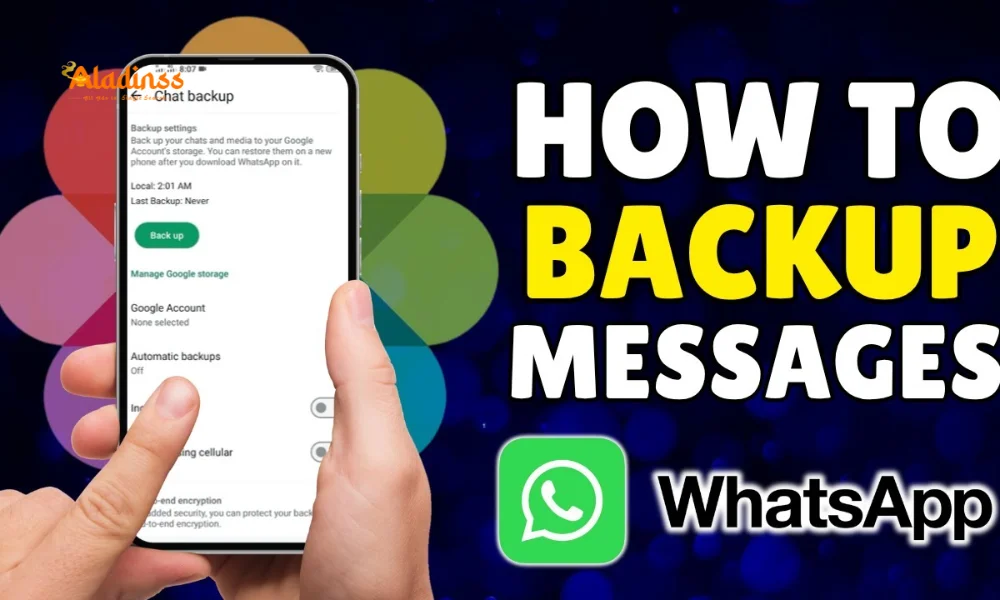
How to Backup WhatsApp Chats: Complete Step-by-Step Guide for 2025 with Latest Features
WhatsApp has evolved from a simple messaging app to an essential communication platform used by over 2.78 billion people worldwide in 2025. With the increasing reliance on digital communication for personal and professional purposes, backing up your WhatsApp chats has become more crucial than ever. Whether you're upgrading to a new device, switching between operating systems, or simply want to safeguard your precious memories and important conversations, understanding the complete backup process is vital for maintaining seamless communication continuity.
The importance of WhatsApp backup extends beyond simple message preservation. Modern WhatsApp usage includes sharing high-resolution photos, videos, voice messages, documents, and even conducting business transactions through the platform. Losing this data due to device failure, theft, or accidental deletion can result in significant personal and professional disruption. This comprehensive guide will walk you through every aspect of WhatsApp backup, ensuring your valuable conversations and media files remain secure and accessible across all your devices.
Understanding WhatsApp Backup Methods and Options
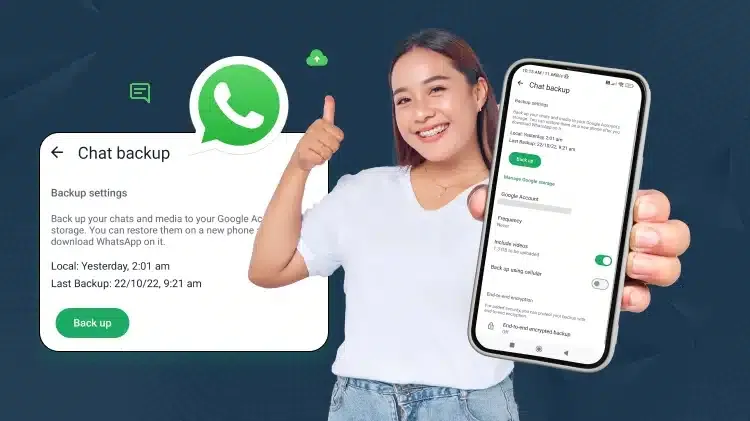
WhatsApp offers multiple backup solutions designed to accommodate different user preferences and technical requirements. The primary backup method utilizes cloud storage services, with Google Drive for Android users and iCloud for iPhone users serving as the default options. These cloud-based solutions provide automatic synchronization, cross-device accessibility, and robust data protection that ensures your conversations remain safe even if your primary device is lost or damaged.
Manual backup options provide users with complete control over when and how their data is preserved. This approach is particularly valuable for users with limited cloud storage, specific privacy concerns, or those who prefer scheduled backup routines that align with their device usage patterns. Manual backups can be initiated at any time and provide immediate confirmation of data preservation, making them ideal for users who frequently switch devices or travel internationally.
Automatic backup scheduling represents the most convenient option for consistent data protection. Users can configure WhatsApp to automatically create backups on daily, weekly, or monthly schedules, ensuring continuous data protection without manual intervention. This method is particularly effective for users who rely heavily on WhatsApp for business communication or maintain extensive chat histories that would be difficult to recreate if lost.
Step-by-Step Manual Backup Process for Android Devices
Creating a manual WhatsApp backup on Android devices begins with ensuring your device is connected to a stable internet connection and has sufficient storage space available. Open WhatsApp on your Android device and navigate to the main interface where your chat list is displayed. The backup process requires access to your Google account, so ensure you're signed in to the Google account where you want to store your backup data.
Tap the three-dot menu icon in the upper-right corner of the WhatsApp interface to access the settings menu. Select "Settings" from the dropdown menu, which will open the comprehensive settings panel. Scroll down through the available options until you locate the "Chats" section, which contains all chat-related configuration options including backup settings, chat history management, and media download preferences.
Within the Chats section, tap on "Chat backup" to access the backup configuration interface. This screen displays your current backup status, including the date and time of your last backup, the size of your backup data, and the Google account associated with your backups. If you haven't previously configured a backup account, you'll need to select "Add account" and choose the Google account where you want to store your WhatsApp data.
Once your Google account is selected and configured, tap the "Back up" button to initiate the manual backup process. The system will display a progress indicator showing the backup status, including the percentage complete and estimated time remaining. During this process, ensure your device remains connected to Wi-Fi and avoid closing the WhatsApp application, as interrupting the backup can result in incomplete data preservation.
Advanced Backup Settings and Customization Options
WhatsApp provides extensive customization options for backup configuration that allow users to optimize storage usage, backup frequency, and data inclusion preferences. The backup settings panel includes options to include or exclude videos from your backup, which can significantly impact backup size and upload time. Videos typically consume the most storage space in WhatsApp backups, so excluding them can reduce backup time and cloud storage usage while still preserving essential text conversations and photos.
Network preferences for backup uploads can be configured to use either Wi-Fi only or Wi-Fi and cellular data. For users with unlimited data plans, enabling cellular backup ensures continuous data protection even when Wi-Fi access is unavailable. However, users with limited data allowances should restrict backups to Wi-Fi connections to avoid unexpected charges and preserve cellular data for essential communications.
Backup frequency settings allow users to choose between daily, weekly, monthly, or manual-only backup schedules. Daily backups provide maximum data protection for users who frequently receive important messages or media files, while weekly or monthly schedules may be sufficient for casual users. The automatic backup feature can be configured to run during specific time periods when the device is typically connected to Wi-Fi and not in active use, such as overnight hours.
Cross-Platform Transfer and Device Migration
WhatsApp's transfer feature represents a significant advancement in cross-device communication continuity, enabling users to move their complete chat history between devices without relying on cloud storage intermediaries. This direct transfer method works seamlessly for Android-to-Android and iPhone-to-iPhone migrations, providing faster transfer speeds and enhanced privacy protection compared to traditional cloud-based restoration methods.
The device transfer process utilizes local Wi-Fi connectivity to establish a direct connection between your old and new devices, eliminating the need for internet uploads and downloads. This approach significantly reduces transfer time for users with large chat histories and ensures that sensitive conversations never leave the local network environment. The transfer includes all message types, media files, group chat memberships, and contact information, providing a complete migration experience.
To initiate a device transfer, install WhatsApp on your new device and select the "Import from Android/iPhone" option during the initial setup process. Ensure both devices are connected to the same Wi-Fi network and have sufficient battery life to complete the transfer. The old device will generate a QR code that must be scanned by the new device to establish the secure transfer connection and begin the data migration process.
End-to-End Encryption and Security Features
WhatsApp's implementation of end-to-end encryption extends to backup data, providing comprehensive protection for your stored conversations and media files. When enabled, encrypted backups ensure that only you can access your backup data, even if your Google account or iCloud storage is compromised. This advanced security feature uses a unique encryption key that must be manually entered or stored securely to restore encrypted backups on new devices.
Enabling end-to-end encryption for backups requires creating a password or 64-digit encryption key that serves as the master access credential for your encrypted data. This password must be stored securely and independently of your device and cloud accounts, as losing this credential will make your encrypted backups permanently inaccessible. Users should consider using password management applications or secure physical storage for backup encryption credentials.
The encryption process adds minimal overhead to backup creation and restoration times while providing maximum security for sensitive conversations. Business users, journalists, and individuals who handle confidential information should prioritize encrypted backups to ensure compliance with privacy regulations and protect against unauthorized access to their communication history.
Troubleshooting Common Backup Issues
Backup failures can occur due to various factors including insufficient storage space, network connectivity issues, outdated app versions, or account authentication problems. The most common issue users encounter is insufficient Google Drive or iCloud storage space, which prevents backup completion and may result in partial data preservation. Regularly monitoring your cloud storage usage and managing unnecessary files ensures adequate space for WhatsApp backups.
Network connectivity problems during backup can result in incomplete or corrupted backup files that may fail during restoration attempts. Ensure stable Wi-Fi connectivity throughout the backup process and avoid switching between network connections while backups are in progress. If backup failures persist, try creating backups during off-peak network usage times when bandwidth availability is typically higher.
Account synchronization issues can prevent WhatsApp from accessing cloud storage services or cause authentication errors during backup creation. Verify that your Google account or Apple ID is properly configured on your device and has appropriate permissions for WhatsApp access. Signing out and back into your cloud storage account can resolve many authentication-related backup problems.
Backup Restoration Process and Best Practices
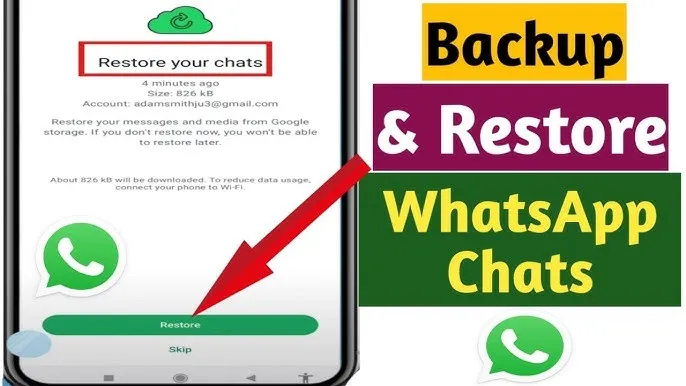
Restoring WhatsApp backups on new devices requires careful attention to account matching and timing to ensure successful data recovery. The restoration process begins during WhatsApp installation and setup, where the application automatically searches for existing backups associated with your phone number and connected cloud storage account. This automatic detection streamlines the restoration process but requires that you use the same phone number and cloud account used to create the original backup.
When WhatsApp detects an existing backup, it will display the backup date and size and prompt you to restore the data. The restoration process downloads and decrypts your backup data, recreating your chat history, contact information, group memberships, and media files on the new device. Large backups may require significant download time and storage space, so ensure your device has adequate available storage before beginning the restoration process.
For encrypted backups, you'll need to enter your backup password or encryption key during the restoration process. This additional security step ensures that only authorized users can access encrypted backup data. Keep your encryption credentials easily accessible during device setup to avoid delays in the restoration process and ensure seamless access to your protected conversations.
Storage Management and Optimization Strategies
Effective WhatsApp backup management requires ongoing attention to storage usage and optimization strategies that balance data protection with storage efficiency. Large media files, particularly videos and high-resolution photos, can quickly consume available cloud storage space and extend backup times significantly. Regular review of your media storage settings and selective backup inclusion can help maintain manageable backup sizes while preserving essential communication data.
WhatsApp's storage usage tool provides detailed analysis of space consumption by individual chats, media types, and file sizes. This information enables targeted cleanup efforts that focus on the largest storage consumers while preserving important conversations and files. Users can delete specific media files, clear chat histories for inactive conversations, or remove entire chat threads that are no longer needed.
Consider implementing regular maintenance routines that include backup verification, storage usage review, and cleanup of unnecessary data. Monthly or quarterly maintenance sessions can prevent storage issues from developing and ensure that your backup strategy remains effective and sustainable over time. These proactive measures reduce the likelihood of backup failures and maintain optimal WhatsApp performance across all your devices.
Business and Professional Backup Considerations
Professional users who rely on WhatsApp for business communication require enhanced backup strategies that address compliance, data retention, and security requirements specific to commercial environments. WhatsApp Business accounts often contain sensitive client information, financial details, and contractual communications that require special handling and protection protocols beyond standard personal backup procedures.
Business backup strategies should include regular scheduled backups, encrypted storage options, and documented restoration procedures that can be executed by multiple team members if necessary. Consider creating backup redundancy by using multiple cloud storage accounts or combining cloud backups with local device storage options. This approach ensures business continuity even if primary backup systems experience failures or access issues.
Compliance requirements in regulated industries may necessitate specific data retention periods, encryption standards, and audit trail documentation for backup activities. Consult with legal and compliance teams to ensure that your WhatsApp backup procedures align with industry regulations and organizational policies. Implementing these requirements from the beginning prevents compliance issues and ensures that your backup strategy supports long-term business objectives while protecting sensitive information.
Facebook Comments














-
 Explore the upcoming Tamil film Maaman - cast, sto...
 -
 Read the ACE (2025) movie review starring Vijay Se...
 -
 Check out Maaman's 1st day box office collection a...
 -
 Explore tourist family reviews for Maaman movie –...
Popular Posts
Vote / Poll
Recent Posts




Recommended Posts

-
 Discover the best schools in Nagercoil f...
 -
 Discover the top-rated preschools in Nag...
 -
 Explore the best schools in Nagercoil th...

Comment / Reply From