How to Upgrade Your Phone Without Losing Anything

How to Upgrade Your Phone Without Losing Anything
Upgrading a phone often feels more stressful than exciting. Even seasoned users worry about losing photos, contacts, notes, passwords, or access to essential apps. The anxiety is understandable because a phone today is not just a device; it holds personal memories, financial access, work conversations, and daily routines. The good news is that modern smartphones are designed to make upgrades safe and smooth, provided you follow the process calmly and step by step.
You don't have to be tech-savvy, and you definitely don't have to spend money on expensive software. With a little planning, the procedure can be straightforward, safe, and even monotonous. This guide is for anybody who simply wants their new device to operate like their old one, but faster and with a better camera.
Why Data Loss Happens During Phone Upgrades
Most data loss does not happen because technology fails. It happens because people rush. Skipping backups, resetting the old phone too early, or assuming everything is automatically saved are the most common mistakes. Think of upgrading your phone like moving houses. If you do not pack your belongings carefully and label the boxes, things will get lost. The same logic applies to your digital life.
Also Read: How to Conduct Yourself During the Interview
Preparation Before Upgrading Your Phone
Preparation is the most important part of upgrading a phone without losing anything. Before turning on your new device, make sure your current phone is fully updated, connected to a stable internet connection, and charged. Updating the operating system ensures compatibility and reduces transfer errors during the process.
Backups are non-negotiable. Whether you use cloud storage or a computer, having a recent backup is your safety net. If something goes wrong, a backup allows you to restore everything as it was. This single step removes most of the fear associated with upgrading.
Handling Photos, Videos, and Personal Files
Photos and videos are often the most emotionally valuable data on a phone. Ensure that your gallery is fully synced to your backup service. Open your photo app and confirm that syncing is complete before proceeding. Large video files may take longer, so patience here prevents disappointment later.
For documents, downloads, and personal folders, review what matters. Some files may live only on your device and not in the cloud. Manually backing these up ensures nothing important is forgotten during the transition.
Your new phone is now configured. It seems familiar. Don't give in to the temptation to download all the programs you've ever used.
1. Live Simply. For a day or two, only utilize what was transferred. You will soon understand which programs you truly miss and which you have been glad to live without. Start by installing those.
2. The Settings Walk. Don't just replicate every setup mindlessly. Go to Settings and play around. This is your chance to examine application location access and modify notification permissions that you've wanted to do for years. Your privacy is also getting a new beginning.
3. The Old Device's Grace Period. For at least a full week, don't trade in your old phone or wipe it. Maintain its charge in a drawer. Use it as a source. Perhaps the login for a niche app didn't transfer, or maybe you overlooked a note hidden in a folder. The best insurance plan is to have the original in your possession.
Upgrading from Android to Android
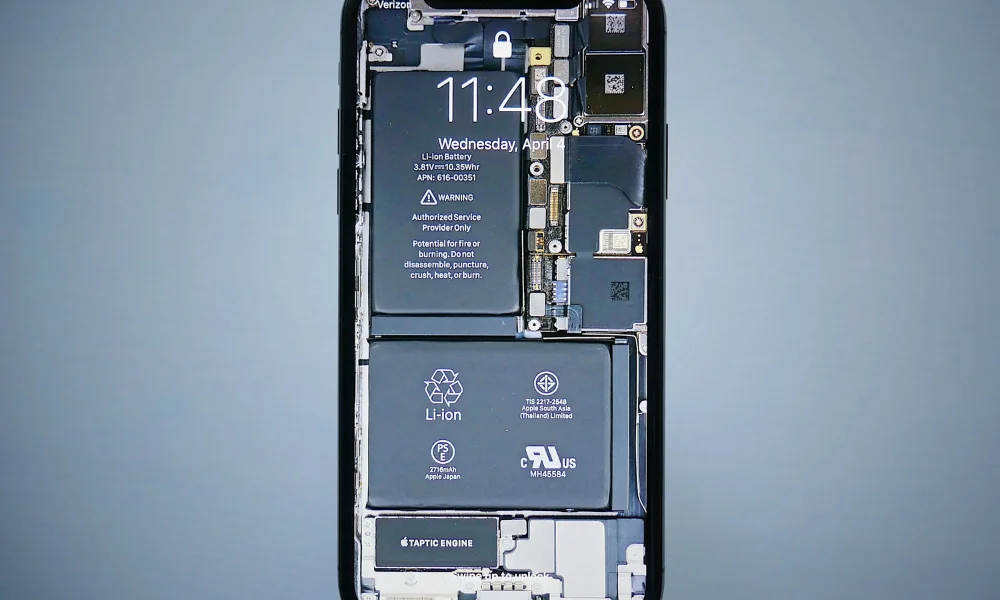
Android phones offer built-in tools to transfer data directly from one device to another. During setup, you will be prompted to connect your old phone using a cable or wireless connection. This method transfers apps, contacts, messages, photos, and most settings in one flow.
Do not disconnect devices mid-transfer. Interruptions are one of the most common causes of missing data. Once completed, take time to review your apps and files before putting your old phone aside.
Upgrading from iPhone to iPhone
iPhone upgrades are designed to feel seamless. When you place your old and new devices close together, the system automatically detects the transfer. Following on-screen steps allows you to copy your data, apps, and preferences securely.
Ensure your backup is recent and complete. This guarantees that even if something unexpected occurs, your information remains safe and recoverable.
Protecting Passwords and Authenticator Apps
Authenticator apps deserve special attention. Unlike photos or contacts, they may not automatically restore. Export or transfer authenticator accounts according to the app's instructions before switching phones. This step prevents being locked out of important accounts.
Password managers, if used, should be synced and accessible before the upgrade. Logging in successfully on the new phone confirms that your credentials are intact.
What to Check After Switching to the New Phone
Once the transfer is complete, review your phone carefully. Open key apps, check recent photos, verify contacts, and test messaging. Confirm that notifications, alarms, and essential settings work as expected.
Keep your old phone for a few days. This grace period acts as insurance, allowing you to retrieve anything you might have missed before performing a factory reset.
Common Mistakes to Avoid During Phone Upgrades
Rushing the process is the most common error. Skipping backups, resetting the old phone immediately, or ignoring security apps often leads to regret. Take your time, follow each step carefully, and treat the process like safeguarding valuable belongings.
Avoid restoring unnecessary apps or clutter. A new phone is also an opportunity to start fresh while keeping what truly matters.
Facebook Comments












-
 Explore the upcoming Tamil film Maaman - cast, sto...
 -
 Read the ACE (2025) movie review starring Vijay Se...
 -
 Check out Maaman's 1st day box office collection a...
 -
 Explore tourist family reviews for Maaman movie –...
Popular Posts
Vote / Poll
Recent Posts



Recommended Posts

-
 Discover the best schools in Nagercoil f...
 -
 Discover the top-rated preschools in Nag...
 -
 Explore the best schools in Nagercoil th...

Comment / Reply From