How to Set Up a New iPhone After Using Android: The Latest Step-by-Step Guide
How to Set Up a New iPhone After Using Android: The Latest Step-by-Step Guide
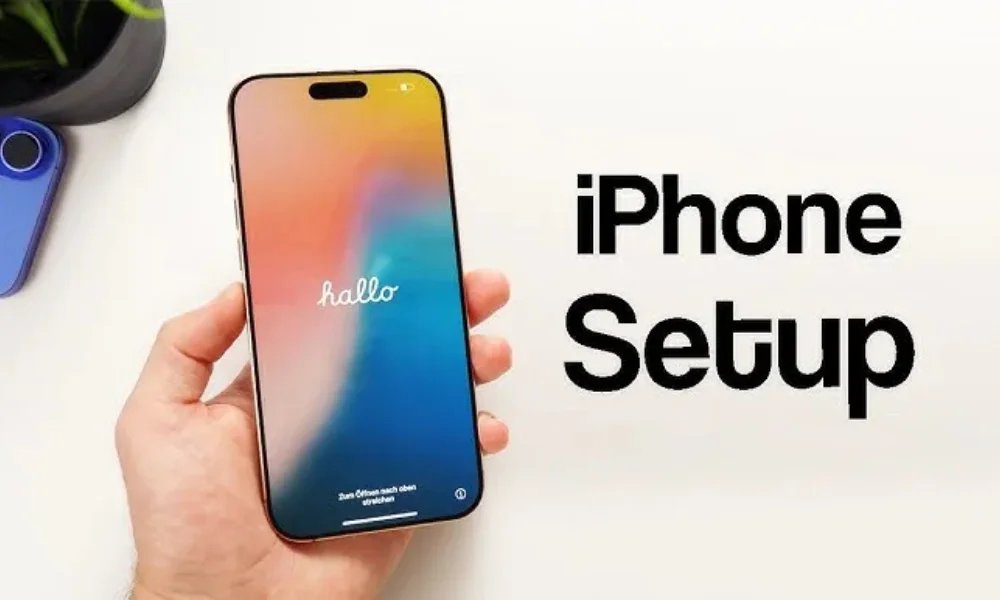
Making the switch from Android to iPhone represents a significant update in your mobile experience. This latest development in personal technology migration has become increasingly smooth, with Apple's dedicated tools easing what was once a daunting process. Our comprehensive report provides a detailed, user-readable pathway through the entire setup, ensuring you leverage every feature designed specifically for converts.
Also Read: How to Tidy Your Home Without Anxiety
Essential Preparation Before Starting the Transfer Process
A successful transition begins with proper preparation, a step many overlook in their excitement. Before initiating the data transfer, ensure both devices are adequately charged-aim for at least 75% battery life-or better yet, keep them plugged in throughout the process. This prevents the frustrating scenario of a phone dying mid-transfer, which could corrupt your data.
On your Android device, take a moment to perform a quick cleanup. Review your photos and delete any blurry shots or duplicates you no longer need. Update all your core apps, especially Google Chrome, to their latest versions through the Play Store, as updated applications transfer data more reliably. Finally, note your most frequently used apps; while the apps themselves won't transfer, knowing which ones to download first from the App Store will help you hit the ground running.
Initiating the Setup and Move to iOS Data Transfer
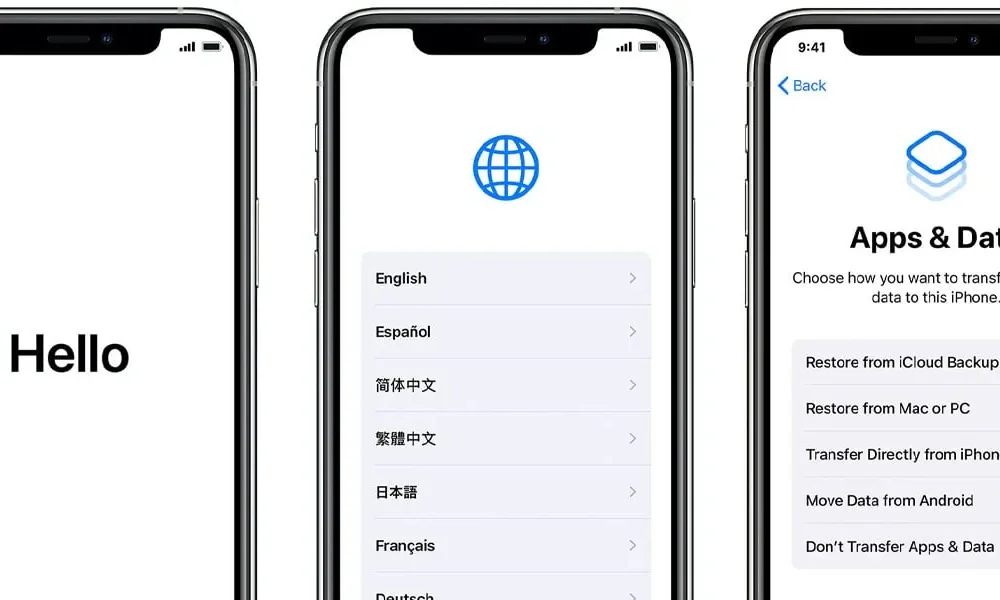
Turn on your new iPhone and follow the initial setup prompts until you reach the "Apps & Data" screen. This is the critical juncture. Select "Move Data from Android." On your Android phone, navigate to the Google Play Store, search for "Move to iOS," and download Apple's official transfer application. If you encounter any issues finding it, your iPhone screen will display a QR code that directly links to the correct Play Store listing.
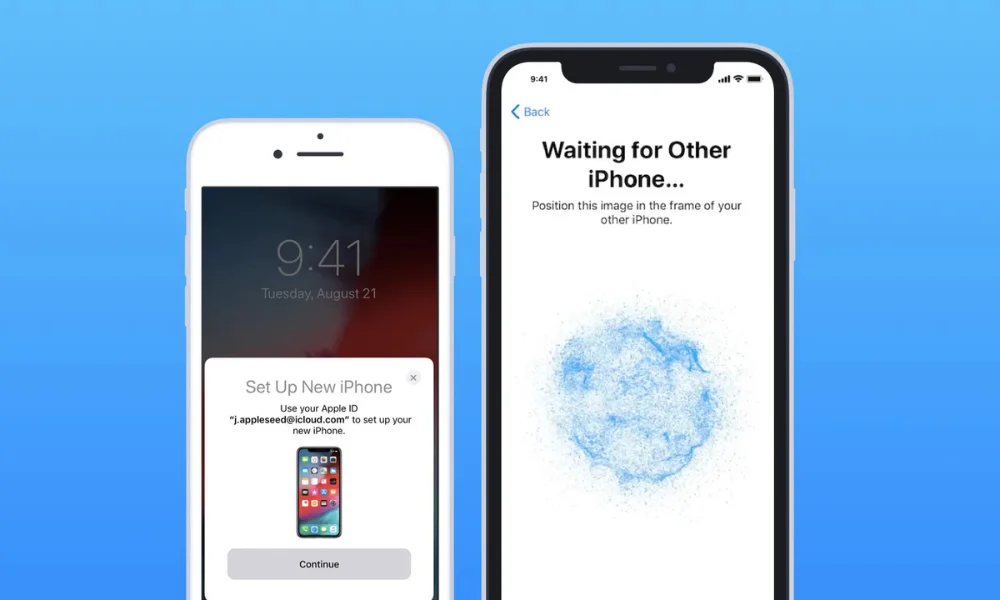
Launch the Move to iOS app on your Android device and tap "Continue." After agreeing to the terms, your iPhone will display a unique 6-digit or 10-digit code. Enter this code on your Android phone to establish a secure, direct Wi-Fi connection between the two devices. This private network is designed solely for your transfer and keeps your personal information protected during the migration.
Selecting Your Data and Completing the Migration
The Move to iOS app will present you with a checklist of data types available for transfer. You can select your contacts, message history, camera photos and videos, mail accounts, and calendars. A significant recent update now includes the ability to transfer your WhatsApp chat history and media directly, a feature that addresses a major concern for many switchers.
Once you've made your selections, tap "Continue" and the magic begins. The most important instruction here is patience. Do not interact with either device until the transfer is complete. The loading bar on your iPhone will give you an estimate, but larger data sets can take considerable time. Let the process finish entirely.
Also Read: How to Communicate Better With Clear Words
Troubleshooting Common Transfer Issues and Final Tips
If the Move to iOS process fails, the most common culprit is insufficient space on your iPhone. Verify you purchased an iPhone with enough storage to hold your Android data. Ensure both devices remain on the same stable Wi-Fi network and avoid putting either to sleep during the transfer.
Most importantly, give yourself a week to adjust. The muscle memory for the back button will fade as you get accustomed to iOS's swipe gestures, and what initially felt unfamiliar will soon become second nature.
Facebook Comments











-
 Explore the upcoming Tamil film Maaman - cast, sto...
 -
 Read the ACE (2025) movie review starring Vijay Se...
 -
 Check out Maaman's 1st day box office collection a...
 -
 Explore tourist family reviews for Maaman movie –...
Popular Posts
Vote / Poll
Recent Posts



Recommended Posts

-
 Discover the best schools in Nagercoil f...
 -
 Discover the top-rated preschools in Nag...
 -
 Explore the best schools in Nagercoil th...

Comment / Reply From